
What This Article Covers:
This post walks you through how to take full control of your AI experience, starting with the simple steps to keep your professional data private in ChatGPT and Claude. You’ll learn how to set up Memory and custom instructions so your AI assistant actually learns your unique writing style and work needs without you having to repeat yourself. By making these small technical tweaks, you can move past the “overwhelmed” phase and build the genuine confidence needed for operational excellence across your team.

If you’ve been feeling a little overwhelmed by all the updates on AI tools, you’re not alone. This kind of reminds me of the internet browser race, think Netscape! 🙄
I know, I’m dating myself here. But that’s what it felt like back in the 90’s, when we were given all these options to browse the “World Wide Web” and eventually only a few players stood up the test of time.
Deep breath in.
Slow and steady will win the race when it comes to learning new tools like ChatGPT and Claude. I’ve got you.
We’re doing a lot of AI training in the commercial and government sectors on Copilot, Claude and ChatGPT and we’ve had a lot of questions come in.
So today I want to share two settings with you that can help you feel more in control and more confident as you build your AI skills—at your own pace

They’re on privacy and memory.
1. How to Prevent Your Chat Data from Being Used to Improve the Model
Both ChatGPT and Claude give you options to control whether your conversations may be used to improve their models. This does not mean your chats are shared publicly, but it does mean your conversations may be used internally by these companies to help improve or train its models. And here’s the rub – you have to opt-out manually. They turn it on automatically.
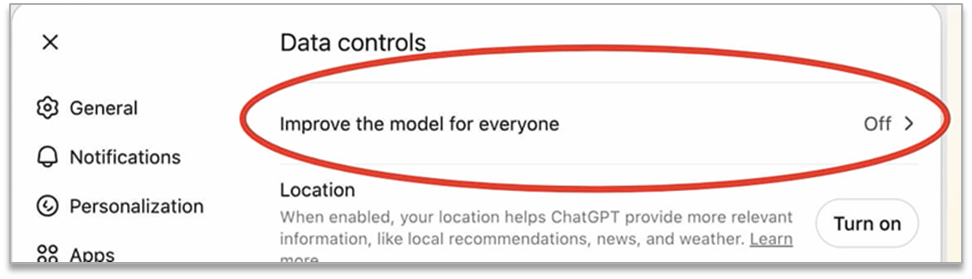
In ChatGPT, go to:
Settings > Data Controls > Improve the model for everyone
Turn this setting off if you do not want your chats used to help improve the tools.
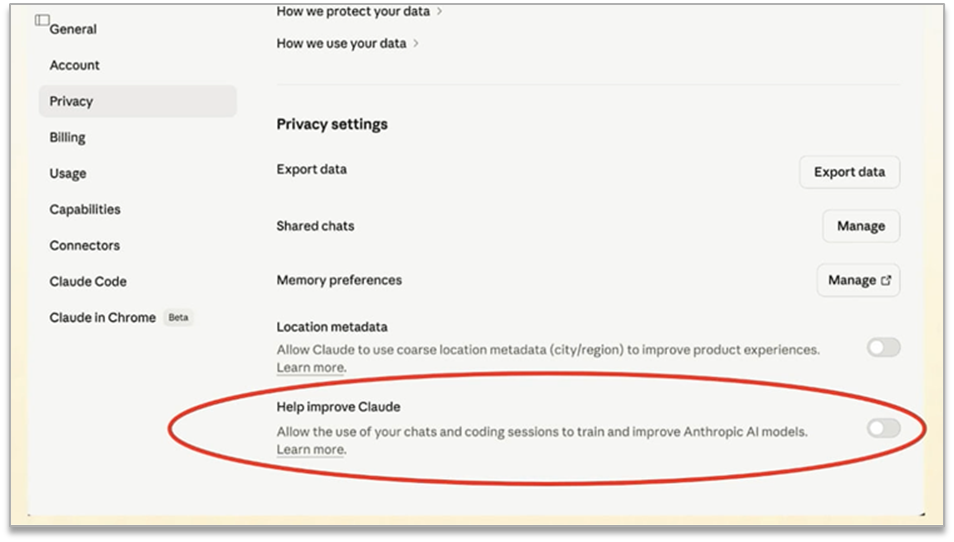
In Claude, go to your:
Privacy Settings / Model Improvement settings
From there, you can choose whether to allow your chats to be used to help improve Claude.
2. Turn On Memory for Personalization and Smarter Conversations
You want your AI assistant to remember helpful details, like your preferences, writing style, or recurring work needs.
These features can make your conversations smoother because you do not have to repeat yourself every time.
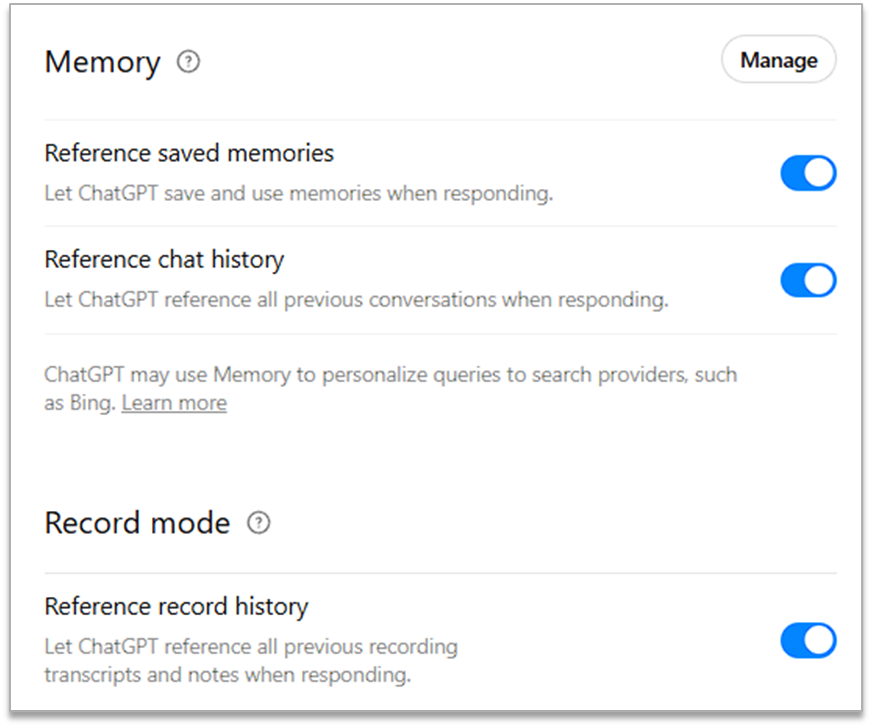
In ChatGPT, go to:
Settings > Personalization
From there, you can manage memory-related settings, including whether ChatGPT can reference saved memories or past chat history. Slide these on if they’re not already.
In Claude, personalization works a little differently.
You can use:
Settings > Instructions for Claude
Take your time exploring these settings. I’ll be sharing more step-by-step guidance, so you can follow along.
You don’t have to rush. Every small step you take builds your confidence—whether you’re just starting out or looking to sharpen your edge at work.
This is an exciting time, don’t let fear keep you stuck. I’m a big believer that fear is placed in our path for a reason. It’s a gutsy call to step up and GROW.
Have a great weekend and if you’re celebrating Mother’s Day – embrace the love! 💐 We’re going to visit my daughter who is a Junior now in college and collect some hugs 🥰.

Seeking to build AI skills with confidence? Request a program guide on our AI Workplace Trainings here: https://inrshoes.com/ai-workforce/.
If you have a question about using AI at work or want to see a specific tutorial, reply to this email, and we’ll queue it up in another email.
About Us
In Our Shoes® partners with organizations to design and deliver leadership development, manager coaching, and AI workforce transformation programs. Our team has delivered training across industries for directors, managers, and high-potential talent and is certified in Everything DiSC® facilitation, change management, and AI-enabled learning design.
